¶ Common Fault Resolution
¶ How to solve the problem if one cannot carve metal?
Material Confirmation:
- Please ensure that the metal material used is appropriate. Avoid using aluminum that has not undergone anodic oxidation treatment. Aluminum, as a highly reflective material, may not be suitable for certain laser processing procedures.
Laser Head Focus Calibration: - Please carefully check if the focus of the laser head has been correctly adjusted. The accuracy of the focus is crucial for the quality and precision of laser processing.
Software Configuration File Check: - Please confirm whether the software has successfully imported the required configuration files. The correct import of configuration files is a prerequisite for ensuring the normal operation of the laser equipment.
Power Setting Review: - If a configuration file has been imported, please further verify whether the power setting has been set to the maximum value, which is 1000. The correct power setting is crucial for achieving the best laser processing results.
¶ What should be done if the wood or cardboard cannot be carved?
Material Confirmation:
- Firstly, please confirm whether the wood and cardboard materials you have chosen are suitable for laser engraving. Different materials have varying degrees of adaptability to laser engraving, so understanding the characteristics of the materials is the first step to ensure the engraving effect.
Spot Check: - Before starting the engraving process, please verify whether the size of the laser spot meets the engraving requirements. The size of the spot directly affects the precision and detail presentation of the engraving. (You can use the focusing function according to the illustrated text in the calibration tutorial to adjust the focus.)
Software Parameter Adjustment: - Please carefully check and adjust the speed and engraving power settings in the software to ensure they are at the appropriate levels. Reasonable speed and power settings are crucial for achieving high-quality engraving results.
Laser Head and Chip Inspection: - If there are issues during the engraving process, such as being unable to engrave the cardboard, it might be necessary to check the light attenuation of the laser head or whether the internal chip is damaged. These factors can all affect the quality and outcome of the laser engraving.
¶ How to solve the problem when the laser head doesn't emit light?
Laser Head Connection Check:
- Please first check if the wiring of the laser head is loose or wrongly connected.
- If you find that the cables are loose or improperly connected, please reconnect them immediately to ensure the normal operation of the laser head.
Laser head and fan function check: - After starting the machine, please observe whether the fan on the laser head is rotating normally.
- At the same time, check if the signal light on the laser head lights up when the laser is activated (the color of the signal light may be blue or green for different models).
- If the fan is rotating and the signal light is on, but the laser head does not emit laser, this may indicate a problem with the laser head and it needs to be replaced.
- Additionally, if the fan of the laser head does not rotate but the power supply at the motherboard port is normal, then the problem may lie in the wiring or the laser head, and further inspection or replacement is required.
You can use a multimeter to check whether there is a 12V (or 24V) power supply output and a 5V information output at the laser terminal when the laser head is turned on, and when the strongest light function is activated.
¶ The machine cannot connect to the computer. How should we handle this?
"Power-on inspection"
- Make sure that the laser engraving machine is turned on and that the fan of the laser module is rotating to confirm that the machine is functioning properly.
USB Connection Confirmation
Please ensure that the USB cable has been properly connected to the interface of the machine.
Computer Identification Check - Check if your computer can recognize the COM port signal of the machine. If necessary, try using another USB port on your computer.
Installation Drive: - If no new COM port is detected in the previous step, it might be necessary to install the CH340 driver. You can obtain this driver from the TF card files, or install the CH340 driver using the lasergrbl tool.
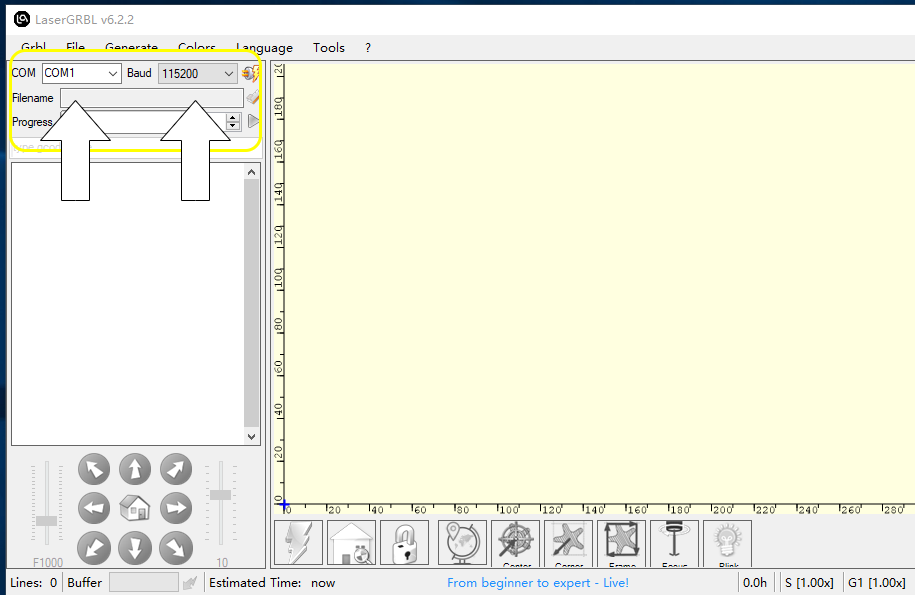
Baud Rate Setting: - Set the correct baud rate in the software, usually 115200.
Port Selection: - Select the correct COM port in the software. If you are unsure, you can try each available COM port.
Connection Operation - Click the "Connect" button in the software to establish communication with the machine.
Troubleshooting: - If the connection still cannot be established after the above steps, please restart your computer and, without opening any other software, re-execute steps 5 to 7. This will help rule out the possibility of software conflicts.
Firmware Update: - If all the steps have been attempted but the problem persists, and a prompt message is displayed in the left dialog box of the software, you may need to update the firmware of your machine. After updating the firmware,Please repeat the above steps.
- Update Firmware Tutorial Link
|
You can try changing the computer to see if it's due to an incompatible computer system.
If it still doesn't work, please contact the technical support team. (Create videos or photos of the above testing steps and submit them to the technical support team to facilitate a quick resolution of the issue.)
¶ The carved lines are distorted or not round or not closed. How to deal with this?
Adjustment of Pulleys and Tracks
-
Use a wrench to fine-tune the hexagonal column of the pulley to ensure that the pulley is tightly attached to the track, and that the movement is smooth without any shaking.
-
After the adjustment, manually move the X-axis and Y-axis to ensure that they can move smoothly on the track without any stalling.
Synchronous Belt Tension Setting -
Adjust the synchronous belts on the X-axis and Y-axis to the appropriate preload state, which helps to maintain the synchronization and accuracy of the mechanical movement.
Laser Module Fixation -
Check and ensure that the screws fixing the laser module are securely fastened without any looseness, in order to prevent unnecessary vibrations during operation.
Adjustment of Running Speed -
Properly reduce the operating speed of the machine, especially after performing precise operations or adjustments, in order to ensure the stability and safety of the processing procedure.
Wheel and Track Inspection -
Regularly check for any signs of wear on the pulleys and for any foreign objects in the tracks. These factors can all affect the normal operation of the machine.
¶ It cannot be cut. How should we deal with it?
Material Identification
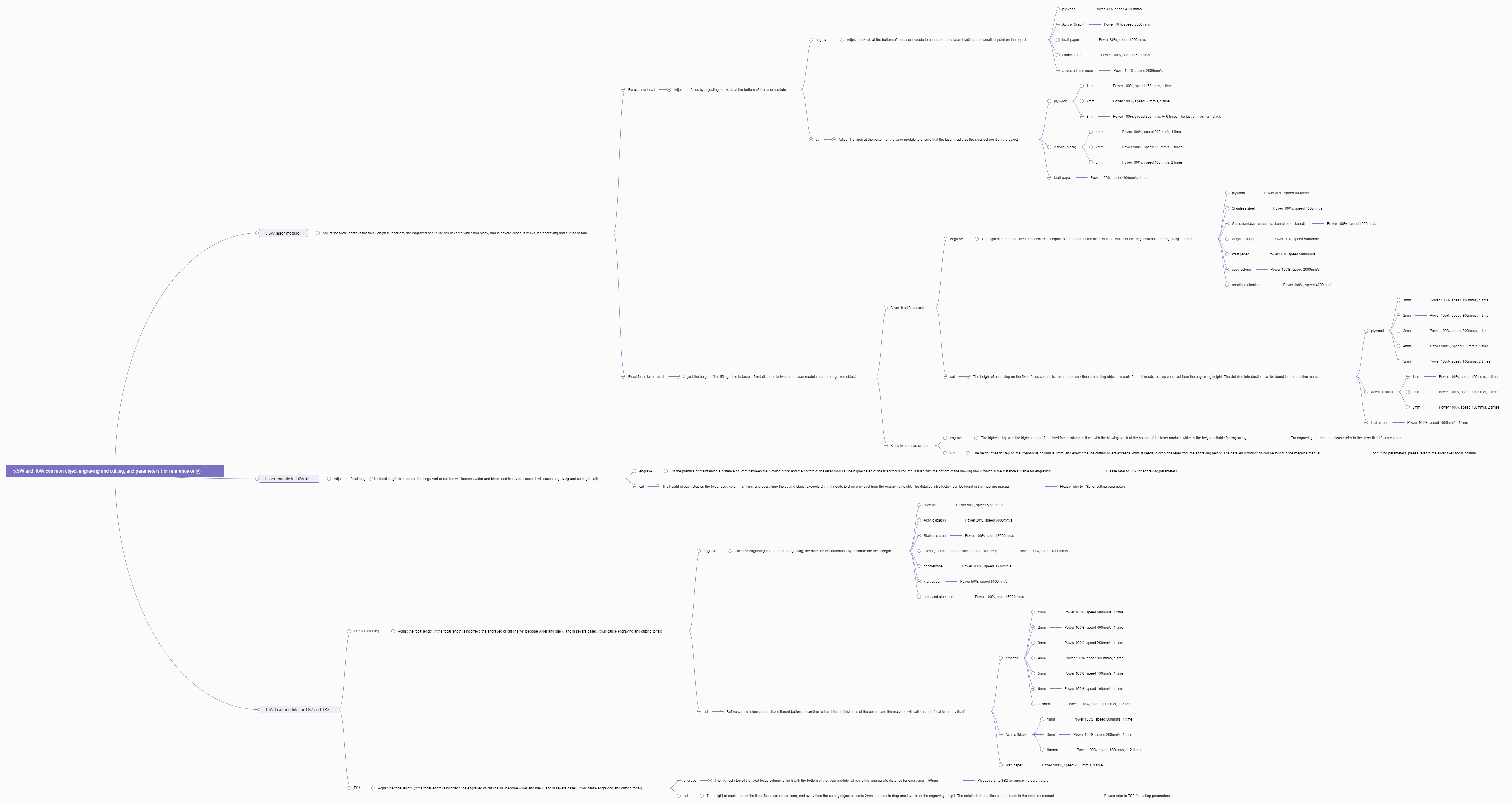
- First and foremost, it is crucial to understand the material of the item to be cut. The common cutting material is plywood with a thickness less than 3mm. Materials such as solid wood, acrylic board, etc. require low-speed cutting. Metal materials cannot be cut by laser. (Refer to 1.png in the reference link)
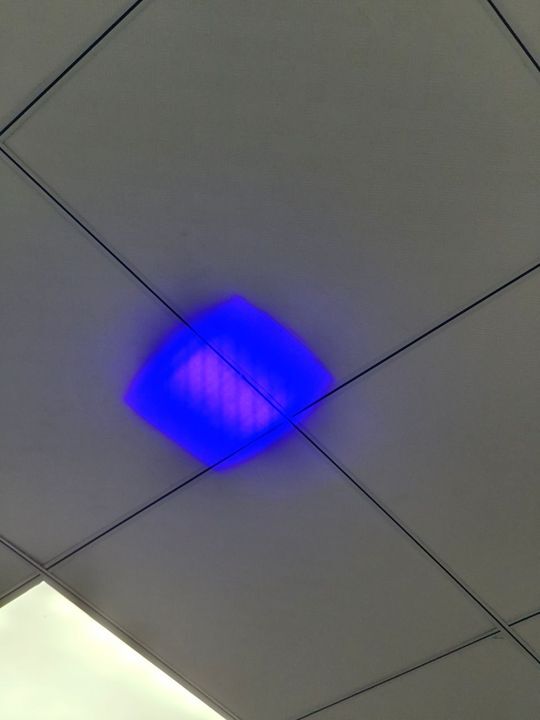
Cleaning Laser Module - After turning off the machine power, check if the bottom lens of the laser module is dirty. Use a cotton swab to gently wipe the laser lens to ensure it is clean and flawless. After cleaning, re-carve and test to verify if the lens is clean (check if the light spot is normal) (refer to 2.jpg in the reference link).
Software Settings Check - When loading the pattern in the laserGRBL software, please check if the S setting value is sufficient. It is recommended to set the maximum S value to 1000, and then conduct a re-engraving test. (Refer to 3.png in the reference link)
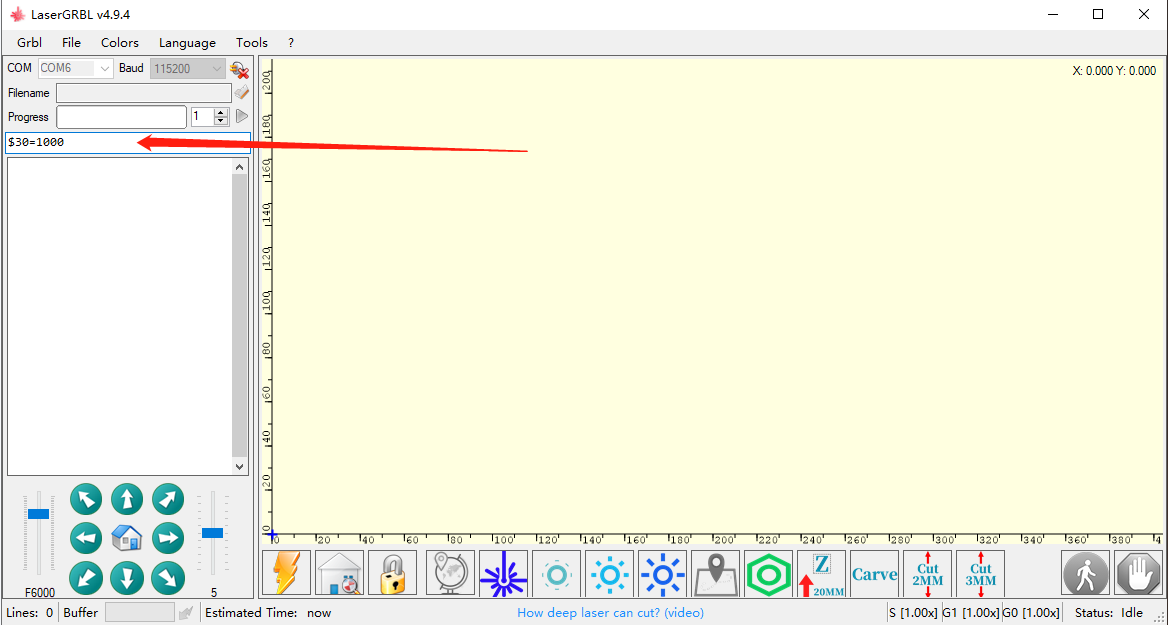
Power Settings: - In the "Type G-code here" input box of the laserGRBL software, enter
$30=1000, and then click the "Enter" key on the keyboard. This will set the default maximum power value of the laser to 1000. Afterwards, please try the engraving test again. (Refer to 4.png in the link)
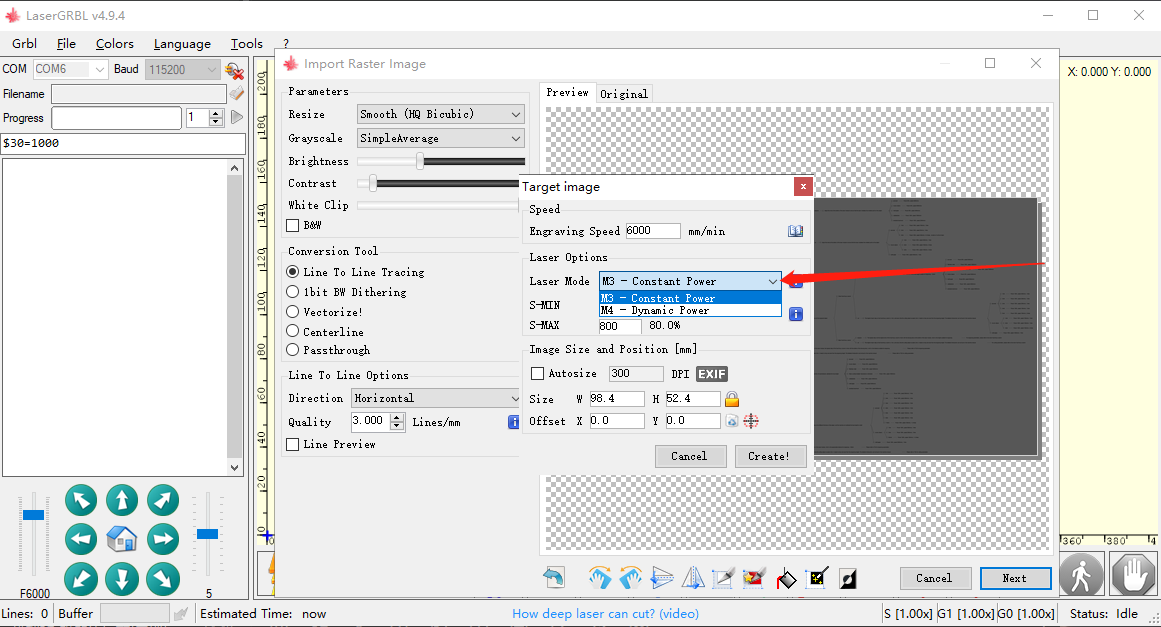
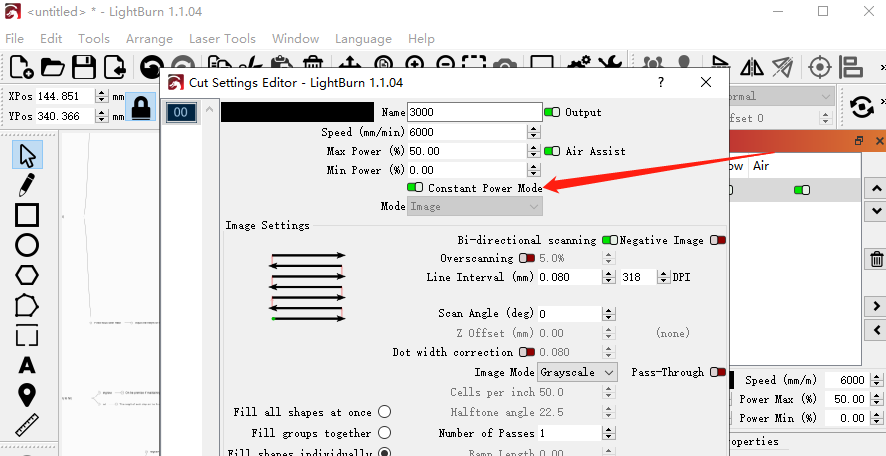
Cutting Mode Selection: - When using the laserGRBL software and selecting the M3 mode, the Lightburn software should enable the "Constant Power Mode". This is the mode suitable for cutting. (Refer to 5.1png and 5.2png in the reference link)
Speed Adjustment - Reduce the engraving speed appropriately and try different speed settings. Since the density of the plywood of the same thickness may vary, the speed needs to be adjusted according to the actual situation.
Laser Head Focusing Adjustment: - Refer to the manual to re-adjust the distance between the laser head and the object to be engraved. Inaccurate focusing may result in inability to cut. It is recommended to try different distances to observe if there is any improvement. (Refer to the focusing method in the link.)
Problem Diagnosis : - If the above steps fail to solve the problem, please find an isolated place, project the laser onto a distant wall and take a photo to record the scene. At the same time, please wear laser protection glasses to ensure safety. Additionally, please take photos of your engraved item and send these photos to us so that we can better assist you in diagnosing the problem.
- Link to the image and text
¶ The carving process always suddenly stops. How should we deal with it?
Replace USB Interface
- If you encounter a connection interruption issue, please try changing the USB port on your computer. Loose interface or insufficient voltage may cause unstable connection.
USB Cable Management - Make sure to place the USB cable in a location that is protected from being touched or pulled. Improper cable management, such as accidentally pulling the USB cable, can also cause the connection to break.
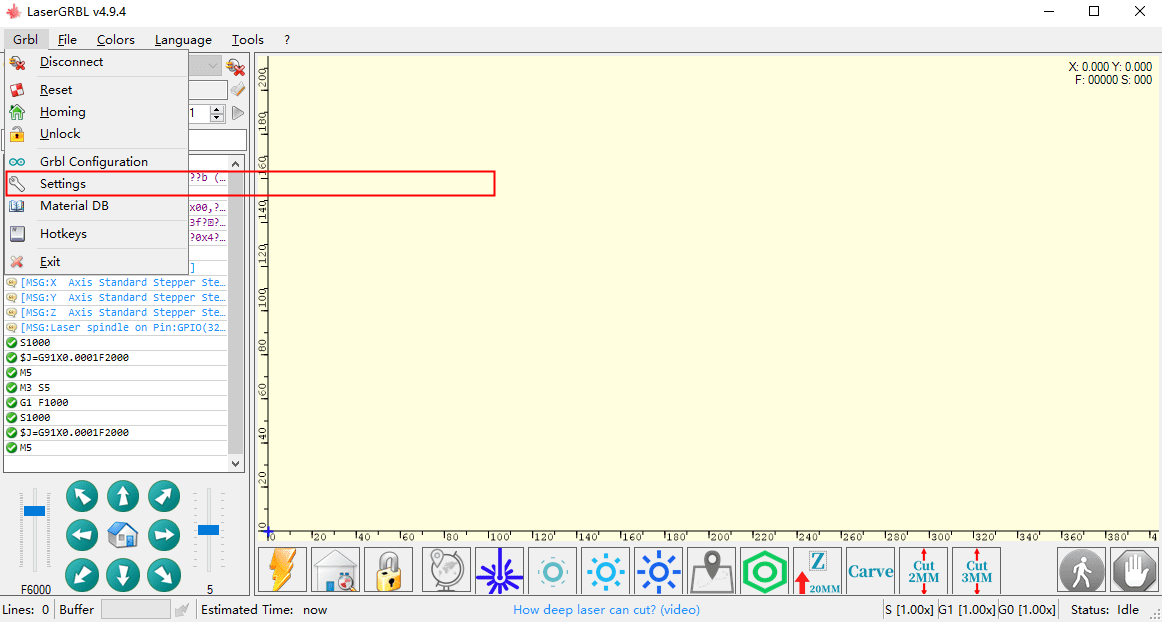
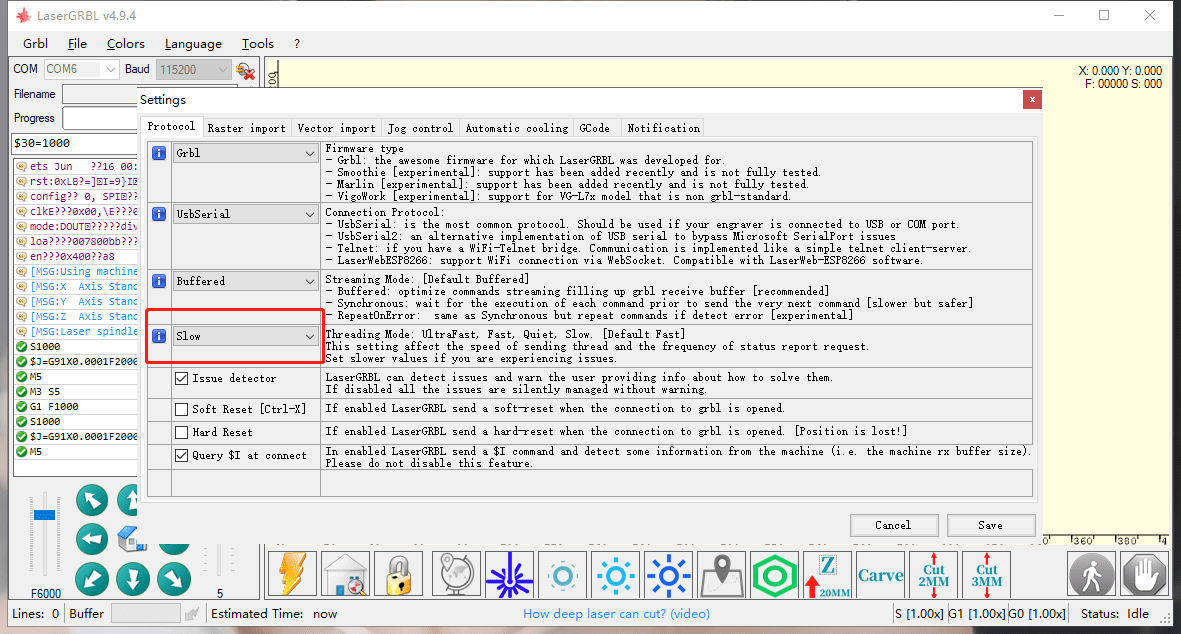
"Adjust software settings" - In the laserGRBL software, check the "Threading Mode" setting and select a lower speed mode to enhance stability. (Refer to 3.1png and 3.2png in Reference Link 1)
"Update the firmware of the machine" - If the above steps do not solve the problem, you may need to update the firmware of your machine. (Refer to Video 2 in the link)
- Please note that although the machine firmware in the tutorial may be different from yours, the steps for firmware update are the same. Please contact us to obtain the firmware suitable for your machine.
- Link to the image and text
- Link to the tutorial for updating firmware
¶ The pattern carved out is upside down. How should we deal with it?
Axial movement test
- First, manually move the X-axis and Y-axis, and carefully check if the movement directions are as expected.
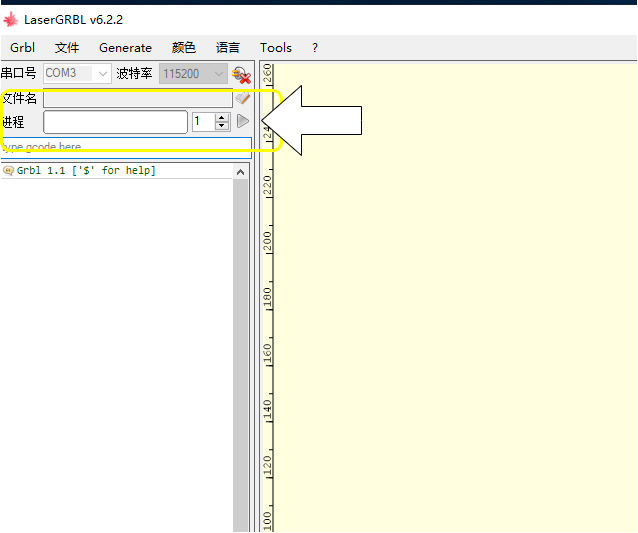
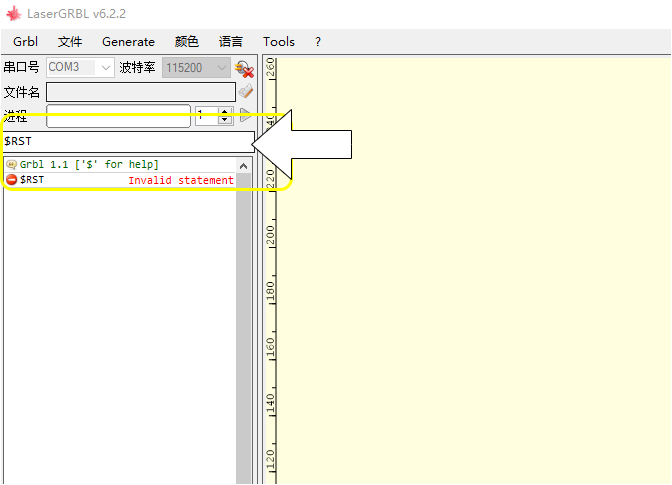
- If you find that the movement directions are incorrect, open the LaserGRBL software, enter
$RSTin the "Type Gcode Here" input box, and then press the "Enter" key on the keyboard. This will reset the machine to the default settings. Afterwards, please conduct the movement test and engraving test again to verify if the problem has been resolved. (Refer to 1.png in Link 1)
Firmware Update: - If the problem still persists after following the above steps, you may need to update the firmware of your machine. (Refer to Video 2 in Link 2)
- Please note that although the machine firmware shown in the attached video may be different from yours, the firmware update steps are universal. Please contact us to obtain the firmware suitable for your machine model and follow the video instructions to update it.
Link to the tutorial for updating firmware
¶ The edges of the engraved pattern have turned black. How should we deal with it?
Enable Sculpting Mode:
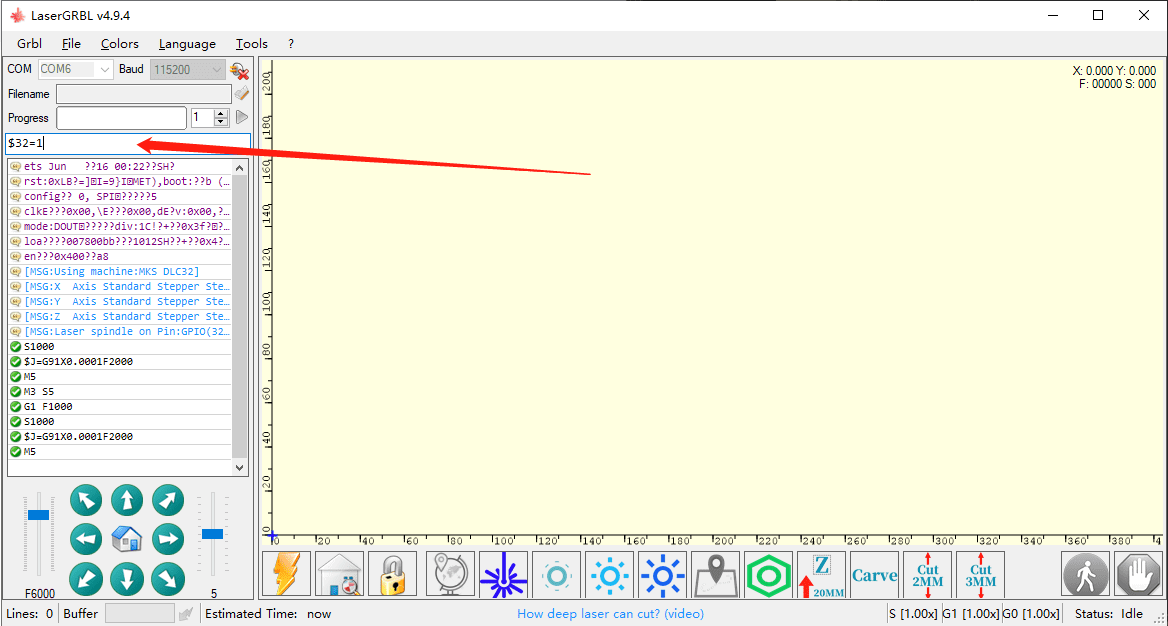
In the "type gcode here" input box of the LaserGRBL software, enter $32=1, and then click the "Enter" key on the keyboard. This will enable the engraving mode and prepare for the subsequent engraving work. (Refer to 1.png in Link 1)
Select the Sculpting Mode:
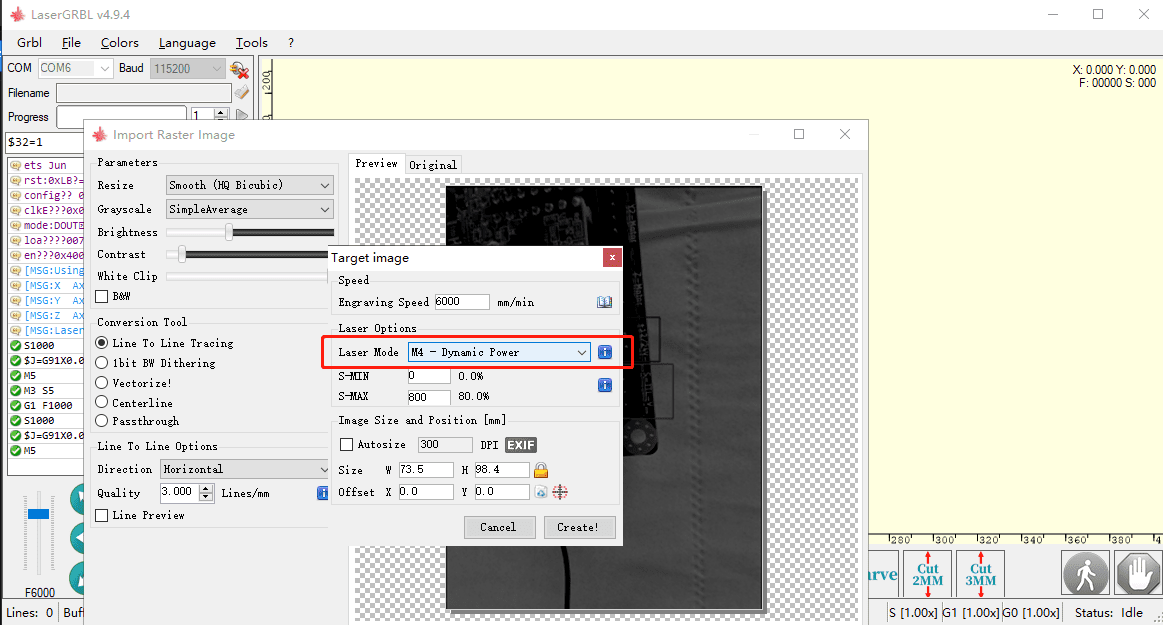
- In the LaserGRBL software, select the M4 mode. At the same time, in the Lightburn software, make sure to disable the "Constant Power Mode".
- The M4 mode is specifically designed for engraving and is more suitable for performing precise engraving tasks. (Refer to 2.png and 2.
- Link to the image and text
- Link to the tutorial for updating firmware
¶ The engraving cannot achieve a gradient effect. How should we handle this?
Enable Sculpting Mode:
- In the "type gcode here" input box of the LaserGRBL software, enter
$32=1, and then click the "Enter" key on the keyboard. This will enable the engraving mode and prepare for the subsequent engraving work. (Refer to 1.png in the reference link)
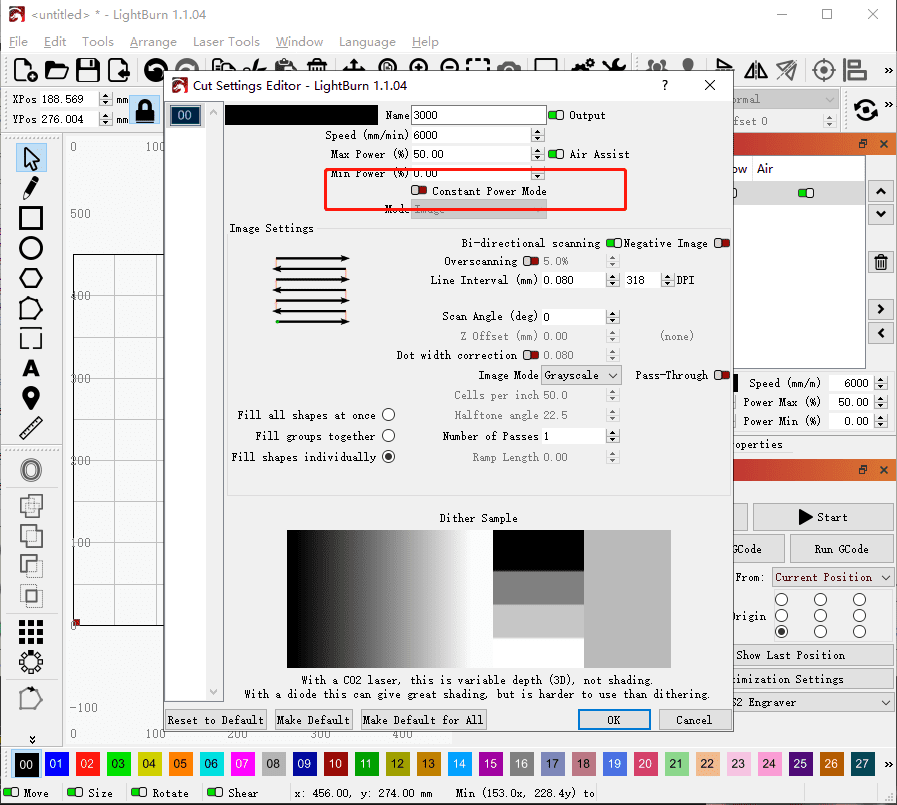
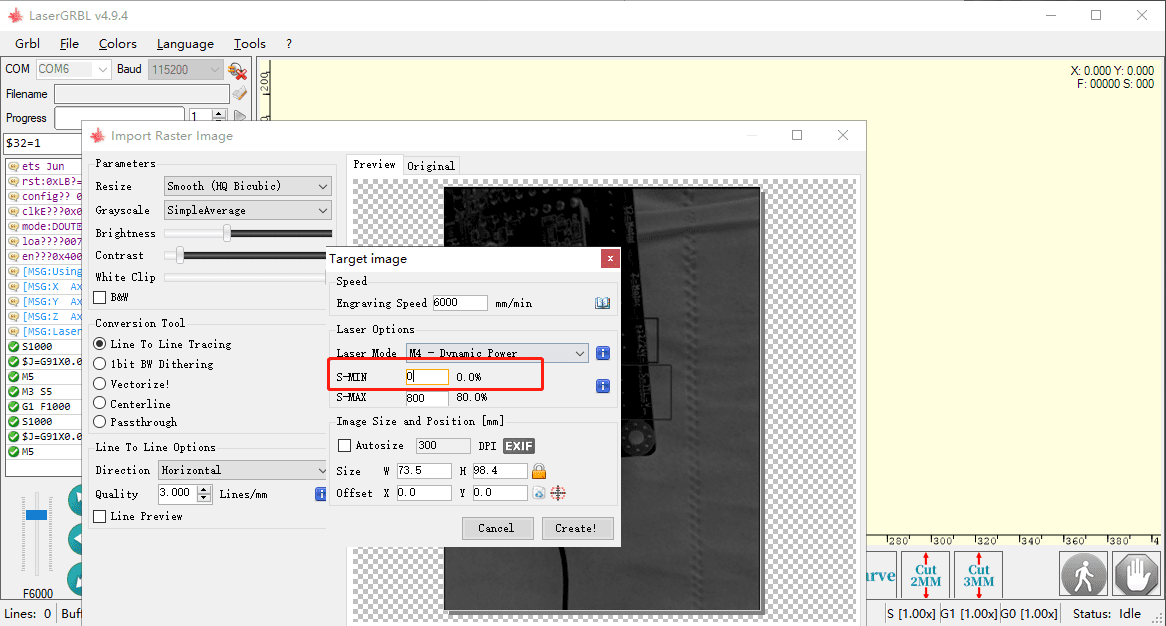
Select the Sculpting Mode: - In the laserGRBL software, select the M4 mode. At the same time, in the Lightburn software, please disable the "Constant Power Mode".
- The M4 mode is suitable for engraving as it offers more precise control and is suitable for engraving tasks. (Refer to 2.png in the reference link)
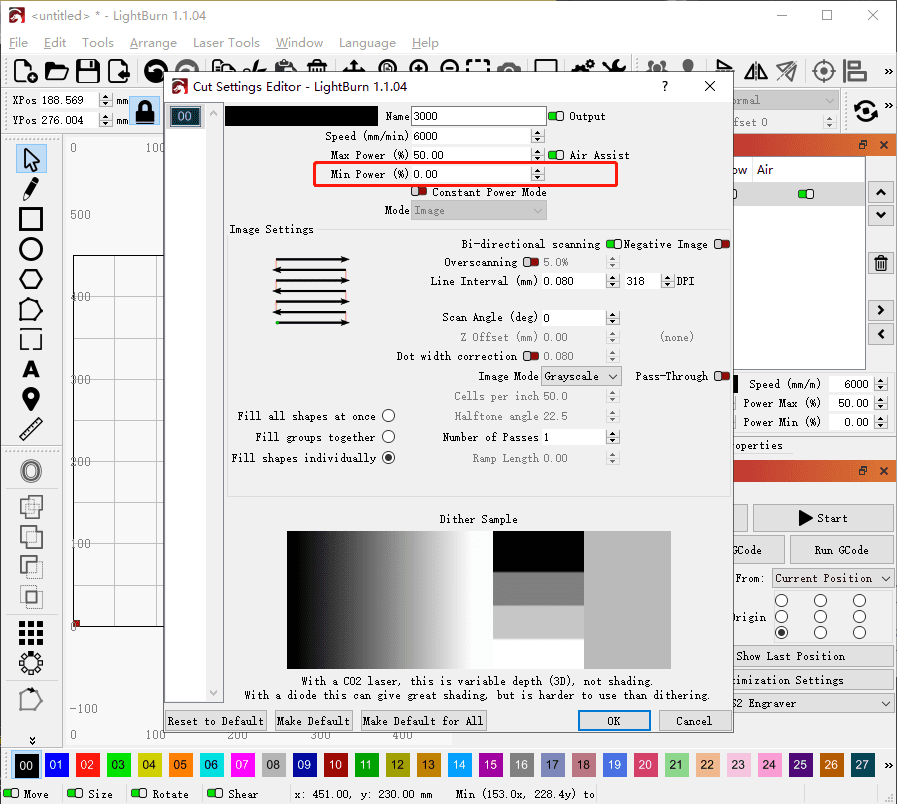
Set Minimum Power: - In the laserGRBL and Lightburn software, make sure that the minimum power S value does not exceed 10% to prevent excessive engraving or material damage. (Refer to 3.png in the reference link.)
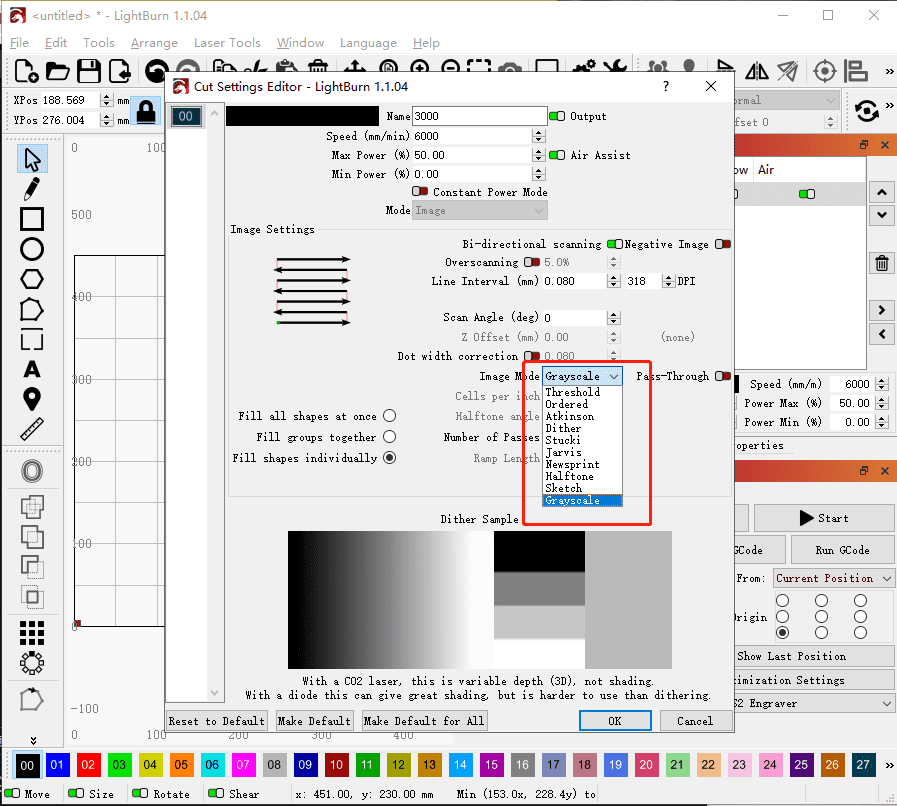
Select Grayscale Mode: - In the Lightburn software, set the image mode to grayscale. The grayscale mode enables you to precisely control the depth and power of the engraving, thereby achieving a better engraving result. (Refer to 4.png in the reference link)
- Link to the image and text
¶ The machine won't start. How should we deal with it?
Check the power connection:
- Make sure that the adapter or power cord is properly connected, and that the power indicator light is on, which indicates that the machine has been powered on.
Test Power Switch - Repeatedly press the power switch of the machine and observe if there are any changes or responses to determine whether the machine can start up normally.
TF Card Removal: - Try to remove the TF memory card and then restart the device to see if this resolves any startup issues that might be caused by the card.
Disconnect the laser module and motor cables - Unplug the cables of the laser module and all the motors, disconnecting them from the machine, and then try to restart it.
- If the machine can successfully start up, please reinsert the cables one by one and observe the machine's reaction.
- If the machine shuts down again after reinserting a certain cable, this might indicate that the newly inserted cable has a problem.
Check the control panel box - Open the control panel box and check if the switch wires are securely connected, without any detachment or damage.
**Adapter Replacement Test ** - If the above steps still fail to solve the problem, try replacing it with another adapter of the same specification for testing to determine whether the problem is caused by the adapter itself.
¶ The machine's movement distance is incorrect. How should we handle this?
Connecting the machine
- First of all, make sure that your computer has successfully connected to the laser engraving machine.
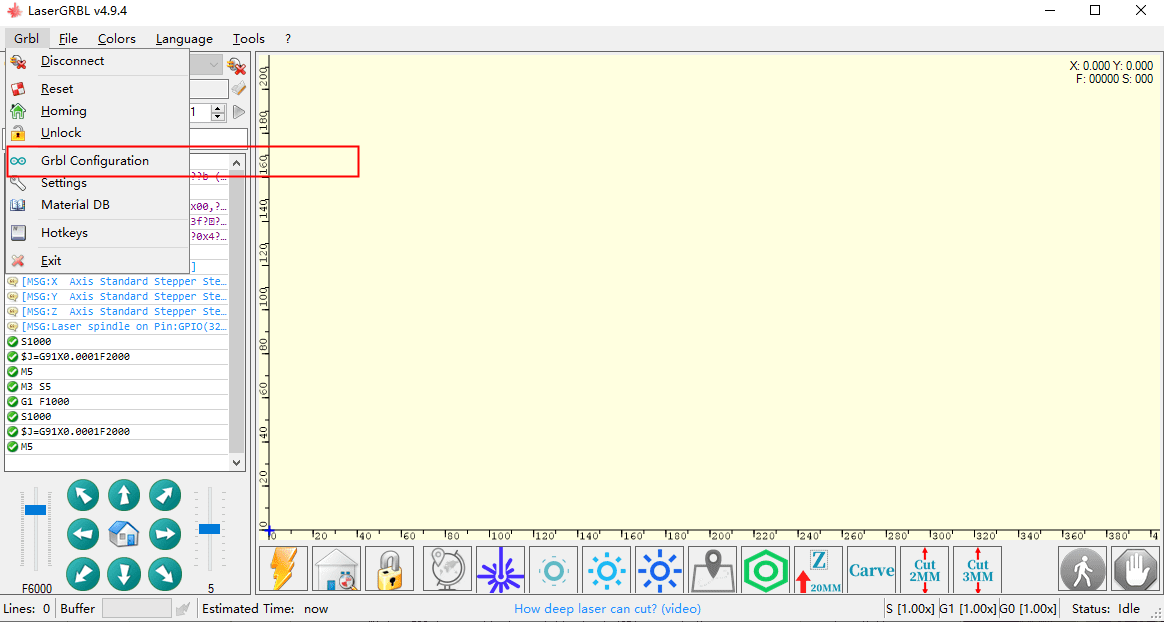
Enter GRBL Configuration: - In the lasergrbl software, click on the "GRBL" option, and then select "GRBL Configuration" to access the machine's configuration settings.
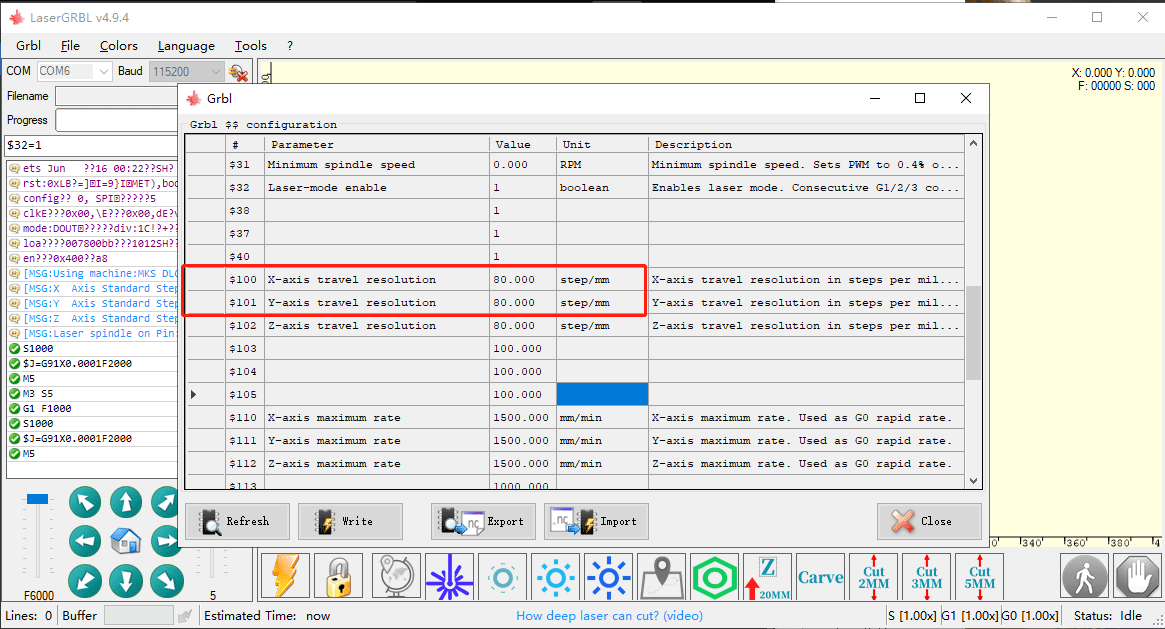
Adjust the speed setting - In the configuration interface, locate the parameters
$100and$101. These parameters are usually used to set the axial movement speed of the machine. - Set the values of
$100and$101both to80. This will adjust the speeds of the X-axis and Y-axis.
"Save and Restart": - After modifying the parameters, click the "Write" button to save the changes.
- After saving, restart the machine to make the settings take effect.
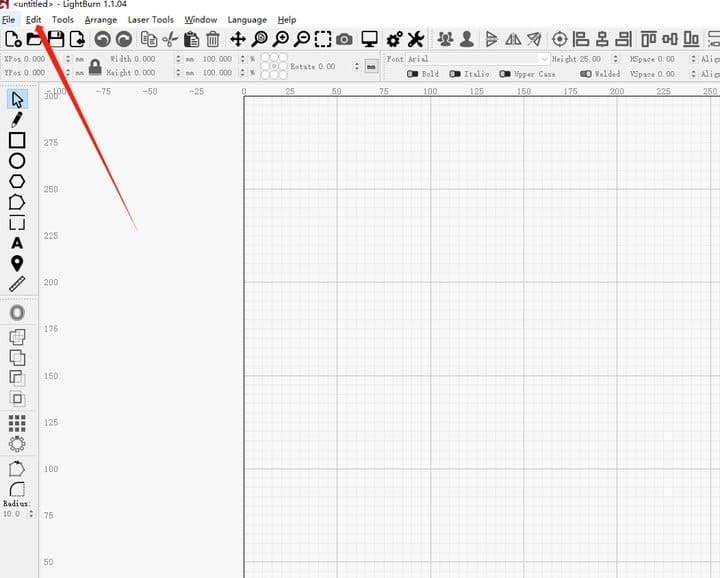
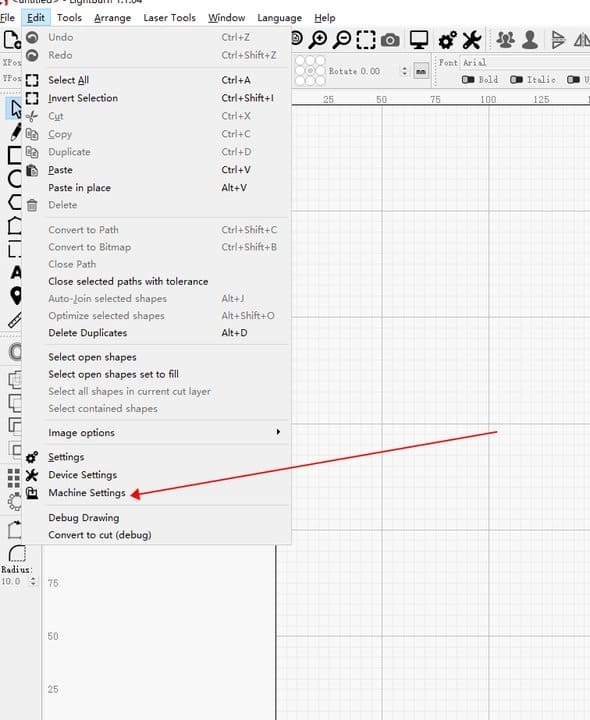
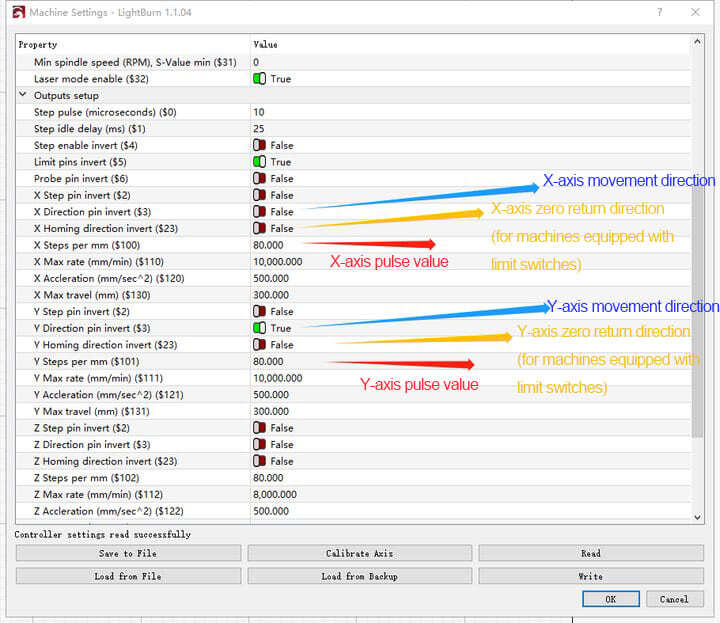
LightBurn Software Settings: - Connect the machine to the LightBurn software and open the machine settings interface.
- Locate the corresponding speed setting parameters in LightBurn and make the necessary modifications (for detailed steps and parameters, please refer to link 2).
- GRBL Software Graphic Link
- LightBurn software graphic link
- Adjust the settings of the laserGRBL software:
- Adjust the settings of the LightBurn software:
¶ The movement direction of the machine shaft is opposite. How should we handle this?
Connecting the machine
- Make sure that the computer has successfully connected to the laser engraving machine.
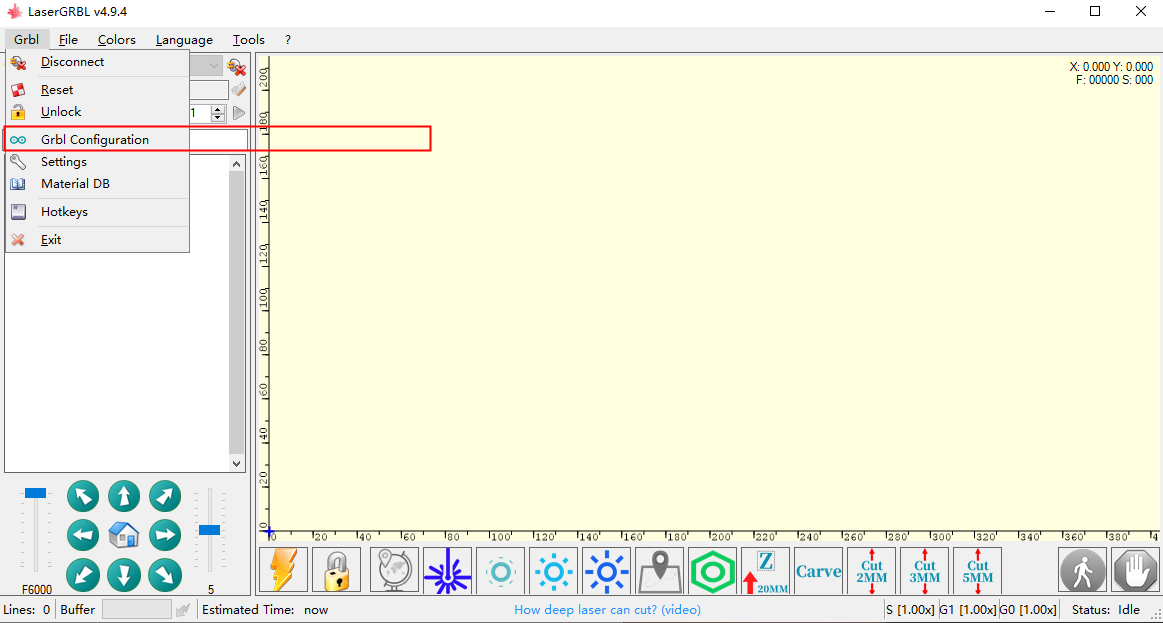
Access GRBL Configuration: - In the lasergrbl software, click on the "GRBL" option, and then select "GRBL Configuration" to enter the configuration interface.
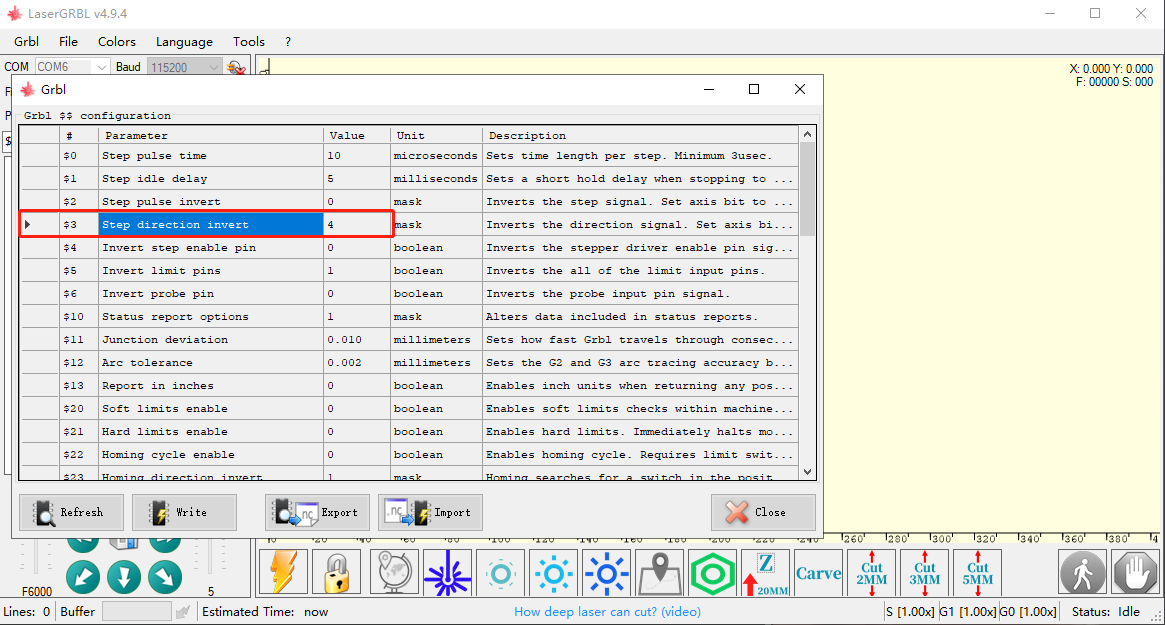
"Adjust the motion control settings" - In the configuration interface, locate the parameter `. This parameter governs the motion control mode of the machine.
- Modify the value of
$3$to any one of the options:0,1,2, or3.
"Save settings and restart": - After modifying the parameter values, click "Write" to save the changes.
- After saving, restart the machine to apply the new settings.
Test axial movement:
- Example operation procedure:
- Follow the above steps to set
$3to0, click "Write", and then restart the machine. - Connect the machine and use the lasergrbl software to move the X-axis and Y-axis. Check if the moving direction is correct.
- If the direction is incorrect, modify the value of
$3to1again, and then re-test the axial movement. - Continue to modify the value of
$3to2and3one by one until the correct axial movement direction is found.
LightBurn Software Settings:
- Connect the machine in the LightBurn software and open the machine settings interface.
- Locate the corresponding parameter values on the LightBurn interface and make the necessary modifications (refer to link 2 for details).
- Lasergrbl software graphic link
- LightBurn software graphic link
- Configure the GRBL settings in laserGRBL:
- Adjust the settings of the LightBurn software:
¶ When uploading using the APP fails, how should it be handled?
Inserting TF Card:
- Make sure that the TF memory card is properly inserted into the card slot of the machine and that the machine can successfully read it.
Signal Source Distance - The machine should be placed close to the connected signal source to ensure the signal strength. If it is a machine in AP mode, please ignore this step.
Format TF Card - If you encounter a reading problem, please format the TF memory card and then reinsert it into the machine.
- After formatting, use the APP to re-upload the program to the TF card.
"Restart the machine" - After completing the TF card operation, restart the machine and try to connect again using the APP.
Change Mobile Device: - If the problem persists, try testing it on another mobile device to determine whether the issue is specific to that particular device.
Firmware Update: - If your machine's firmware is not included in the attachment, please contact us and we will provide the appropriate firmware for your machine.
- Link to the tutorial for updating firmware